
Break Windows Password
Mount and boot into the server using the Windows Server ISO (or any generic Windows 10 image if the system is not a VM).
When prompted to boot from the ISO, press Shift + F10 to open a command prompt.
Enable the boot menu so you can enter Safe Mode (this helps prevent Defender interfering while you make changes).
Enter the following command at the prompt:
bcdedit /set {bootmgr} displaybootmenu yesFind the Windows boot drive and change directory to Windows\\System32. You can find the Windows boot drive using DiskPart.
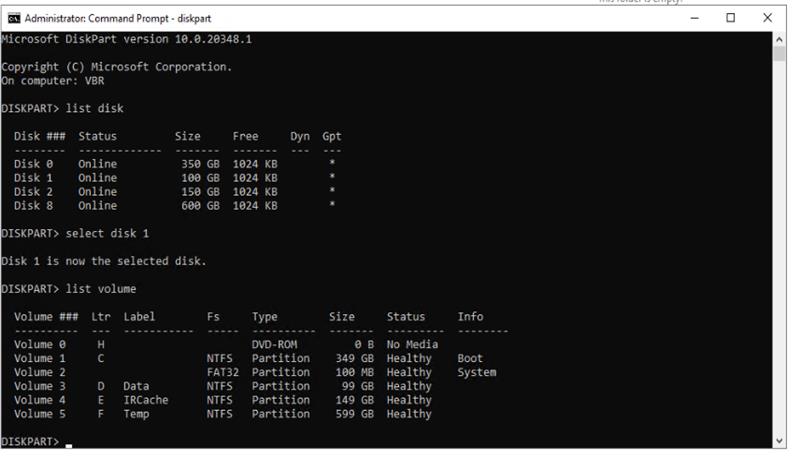
Here you can see Disk 1 is the boot disk for the server. Run:
list diskselect disk 1list volumeYou can see C: is the boot drive, so you would run cd C:\Windows\System32.
If the boot drive doesn’t have a drive letter in DiskPart, select the correct volume number as appropriate. Here we assign the drive letter T:
select volume 1assign letter=tMake a backup of utilman.exe as utilman.bak:
copy utilman.exe utilman.bakThen replace utilman.exe with cmd.exe:
copy cmd.exe utilman.exeFinally, reboot the Windows PE session with the following command:
wpeutil rebootStart the machine in Safe Mode and press Ctrl + Alt + Delete to log in. Click the Ease of access shortcut (now mapped to cmd.exe). This will open an elevated command prompt.
Add a new local administrator account:
net user /add tempadmin PasswordHereAdd the tempadmin account to the Administrators group:
net localgroup administrators tempadmin /addYou can now reboot the server and start it normally. Log in with the new tempadmin account.
DANGER
You should restore the original utilman.exe by renaming utilman.bak back to utilman.exe if you plan to keep the server in service.